Part 7 · Setup, Customization & Hardware
The App Drawer (all your apps)
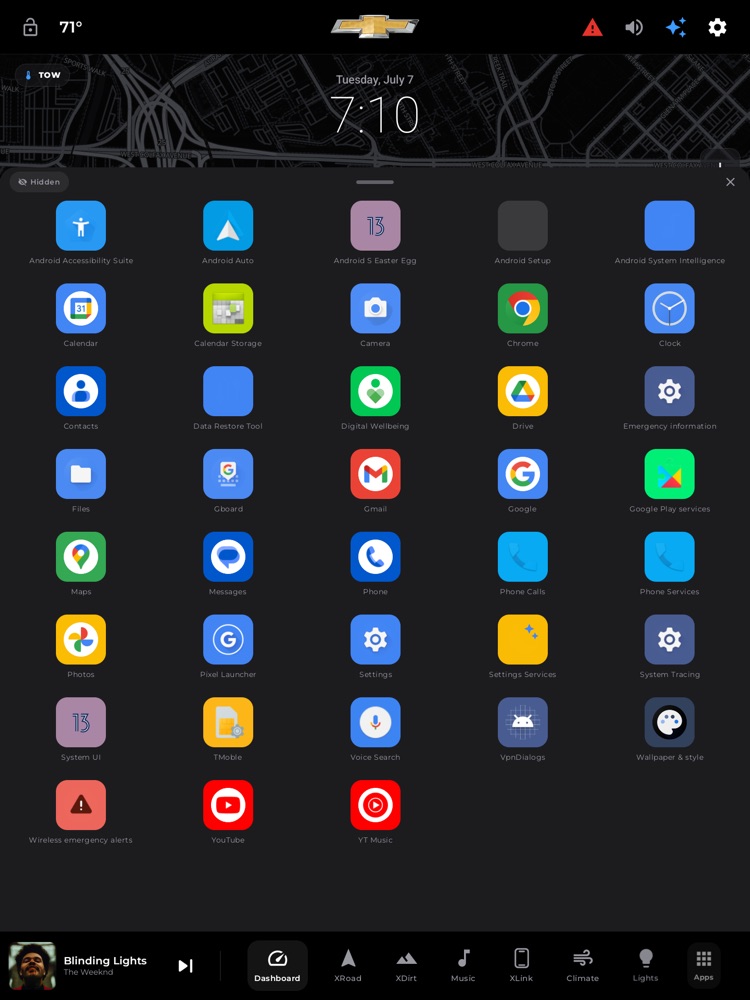
The app drawer: a 5-column, iOS-style grid of every installed app.
The App Drawer is your one place to reach every app installed on the head unit — even the ones your factory system normally keeps buried, like Car Settings, the radio app, sound/DSP tools, and file managers. It slides up over the bottom of the screen as a clean, iPhone-style grid of big, colorful icons, and it grabs the whole screen if you drag it up. Pin the apps you use most to the top, hide the ones you never touch, and launch anything with a single tap.
Where to find it: Bottom dock › Apps button (the grid icon on the far right of the dock, next to your drive-page tabs).
When you'll use it: Any time you want something that isn't one of xOverland's built-in pages — opening the OEM radio or sound settings, launching a streaming or podcast app, jumping into a file manager or a dash-cam viewer, or getting to the head unit's own Car Settings. It's also where you tidy up: promote favorites to the top and tuck away the clutter so the apps you actually use are one tap away.
The screen, part by part
When you tap Apps, a rounded sheet slides up from the bottom and sits just above the dock. Here's everything on it:
- The drag handle (the grabber). A short, fat bar centered at the very top of the sheet. This is the thick, forgiving zone you grab to resize the drawer. It's deliberately oversized so you can catch it easily without looking.
- The "Hidden" filter chip (top-left of the handle bar). A small pill with an eye-with-a-slash icon. Tap it to reveal apps you've hidden (the pill fills with color when it's on); tap again to tuck them back away. Use this when you want to un-hide something you put away earlier. When it's off, hidden apps simply don't appear in the grid.
- The Close button (top-right of the handle bar). A round X. Tap it to close the drawer and return to whatever page you were on. (You can also just flick the drawer down — see below.)
- The "PINNED" section (only appears if you've pinned apps). A small "PINNED" label followed by your favorite apps, shown first in the order you pinned them. Below them, an "ALL APPS" label separates your favorites from the full list.
- The app grid. Five columns of large, rounded-square icons — the same clean, uniform look across the board, each tile tinted to match its icon's dominant color so full-logo and full-bleed icons all read the same size. Every launchable app on the unit is listed here, sorted alphabetically by name, with its name centered underneath. Hidden apps (when you've turned on the Hidden filter to see them) show up with a dimmed, grayed-out name so you can tell them apart at a glance.
The drawer opens at a "peek" height that shows the first complete row of apps. Scroll the grid to see the rest, or drag it taller for more at once.
How to open and close the drawer
- Tap the Apps grid icon on the right side of the bottom dock. The drawer slides up to its peek height.
- To close it, tap the round X at the top-right — or grab the handle and flick the sheet down. If you drag it low enough, it closes automatically.
- Tapping Apps again while the drawer is open also closes it.
How to make the drawer bigger (or full-screen)
- Put a finger on the grabber bar at the top of the sheet.
- Drag up to grow the drawer — you can pull it all the way up to fill the whole screen above the dock, so you see many rows of apps at once.
- Drag down to shrink it back toward the peek height, or keep dragging down past the bottom to close it entirely.
- Let go anywhere in between and the drawer settles at that height.
How to launch an app
- Open the drawer and find the app (scroll if needed, or drag the drawer taller to see more).
- Tap its icon once. The app opens full-screen and the drawer closes on its own, so you're taken straight into the app.
How to pin a favorite to the top
- Press and hold any app's icon. A card pops up in the center of the screen showing that app's icon and name, with a few big, easy-to-tap options.
- Tap Pin to top. The app jumps up into the "PINNED" section at the top of the drawer for quick access next time.
- To remove it later, press and hold it again and choose Unpin.
You can pin up to 5 apps. Once you've pinned five, the "Pin to top" option won't add more until you unpin one — so keep it to your true favorites.
How to hide an app you never use
- Press and hold the app's icon to bring up its options card.
- Tap Hide. The app disappears from the normal grid, decluttering your drawer. (If it was pinned, hiding it also removes it from your pinned favorites automatically.)
How to bring a hidden app back
- Tap the Hidden chip at the top-left of the drawer so it lights up — your hidden apps reappear in the grid (their names shown dimmed).
- Press and hold the app you want to restore.
- Tap Unhide. It returns to the normal list. You can then turn the Hidden filter back off.
How to uninstall an app
- Press and hold the app's icon to open its options card.
- Tap Uninstall (shown in red). The head unit's standard uninstall confirmation appears — confirm there to remove it.
- When you next open the drawer, the app list refreshes, so anything you uninstalled (or newly installed) shows up correctly.
Note: some built-in system apps can't be uninstalled — that's a limitation of the head unit itself, not xOverland. In that case the system's uninstall screen will simply tell you it can't be removed.
What you need
Nothing extra — the App Drawer works entirely on its own, with no adapter, account, or internet connection required. It reads the apps already installed on your head unit, so the list you see reflects your specific unit. It intentionally lists everything launchable — including apps the factory launcher hides — which is why you may spot system tools here (Car Settings, radio, sound/DSP, file managers) that you couldn't easily reach before. Your pinned and hidden choices are saved on the unit and stick around between drives; xOverland's own icon is left out of the list, since you're already in it.
Tips & good to know
- Your favorites and hidden apps persist. Pins and hides are remembered, so your drawer stays organized exactly how you left it every time you get in the truck.
- The list refreshes every time you open it. Install a new app or uninstall one, and it shows up (or disappears) the next time you open the drawer — no restart needed. The previous list stays on screen for a beat while the fresh one loads, so reopening never flashes blank.
- Big, fat-finger friendly. The grabber, the app tiles, and the press-and-hold options card are all sized generously for easy, glanceable taps — even on a bumpy road or with gloves on.
- Icons all look tidy. Every app gets the same rounded-square treatment tinted to its own colors, so your grid looks consistent and premium instead of a jumble of mismatched shapes.
- Hiding auto-unpins. If you hide an app that was pinned, it's removed from your favorites too — no leftover empty slot.
- Filtering here means the "Hidden" toggle. The drawer keeps things simple: rather than a search box, it sorts every app alphabetically and lets you curate with pin/hide, so your most-used apps live at the top and clutter stays out of sight.