Part 1 · Getting Started
App overview, home screen & the always-there header and dock
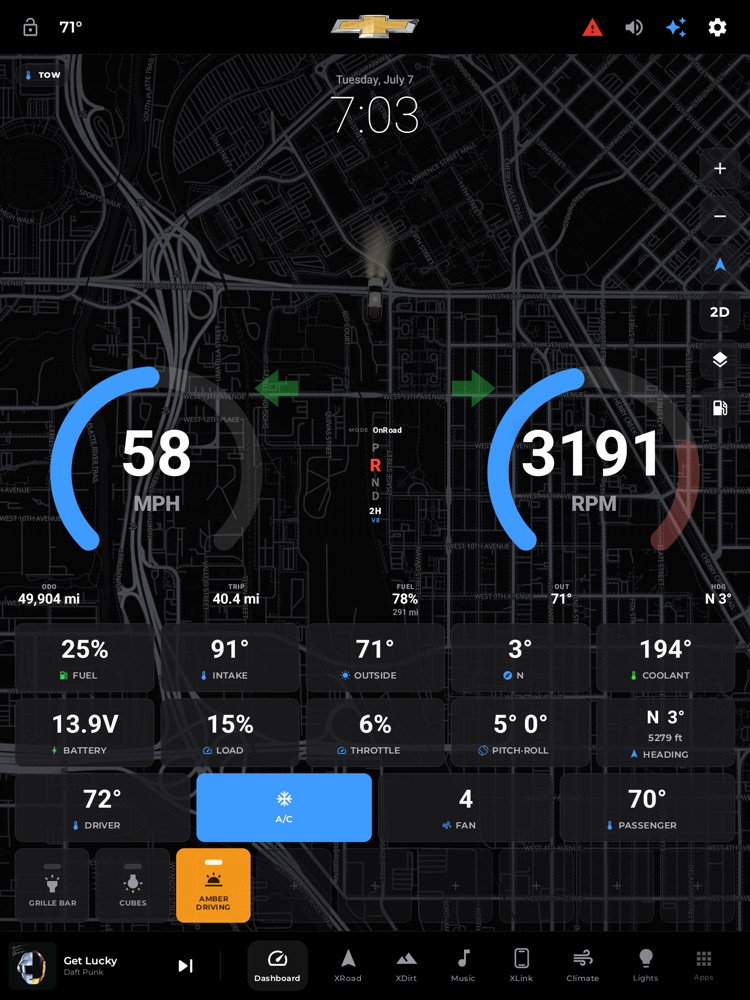
The xOverland home — header on top, a live surface in the middle, the dock on the bottom.
xOverland is the home screen for your truck's big 15.6" touchscreen. Instead of the stock Android launcher, you get a clean, Tesla-style cockpit built for a Silverado: a live instrument dashboard, on-road and off-road maps, music, climate, lights, and phone projection, all one tap apart. It runs full-screen in portrait and is designed to be used while driving, so every button is big, glanceable, and forgiving of a bumpy road.
Two things are always on screen no matter what page you're on: a slim header across the top and a dock across the bottom. Everything else, the "surface," fills the space between them and changes as you tap around. This page explains that permanent frame and how you move through the app.
Where to find it: It's everywhere. The header and dock are always visible; the page in the middle is whatever tab you last tapped (it opens on the Dashboard by default).
When you'll use it: Every time you get in the truck. This is your starting point for navigation, music, climate, and everything else.
The first thing you'll see: the startup
When the truck powers up, xOverland boots in with a short, cinematic sequence: the map rises up from the bottom, the header settles into place, then the dock slides up and its buttons light up one by one, and finally the gauges settle in. It takes a few seconds and is intentionally calm, not a jarring flash-to-full. Voice alerts and spoken navigation stay quiet until the startup finishes, so nothing talks over the intro. (On the head unit, a branded intro animation plays even earlier, before Android hands control to xOverland.)
The header (top bar), part by part
A flat bar across the very top, matching the dock at the bottom so the two read as one frame. From left to right:
- Lock icon (far left). An open padlock means the screen is unlocked; tap it to lock the screen. When locked it becomes a closed padlock. It sits right at the edge, on purpose, so an accidental tap is easy to spot and undo. See "How to lock the screen" below for what locking does.
- Temperature (next to the lock). The current outside temperature in degrees. Tap it to open the full Weather page (forecast, radar, and more). The temperature comes from live weather when you're online, and falls back to the truck's own outside-air reading otherwise.
- Clock. The time, shown next to the temperature on most pages. It follows your system's 12- or 24-hour setting. On the Dashboard the small header clock is hidden, because the Dashboard has its own large clock.
- Chevy bowtie (center). The Chevrolet bowtie is centered at the top. Tap it to open the "About this vehicle" page, a rich profile of your truck (specs, VIN, plate, and a 3D model you can spin).
- Engine-warning icon (right side, only when needed). A red warning triangle appears here only when your truck has active engine trouble codes. If there's more than one, a small red badge shows the count. Tap it for the full list of active warnings. When a brand-new code appears it also takes over the whole screen with an alert; the header triangle is the quiet reminder that stays afterward. If your truck is healthy, this icon simply isn't there.
- Volume icon (speaker). Tap it to open the volume control, a small pop-up with +, −, and mute buttons that appears just below the icon. See "How to change the volume" below.
- Scout sparkle. A glowing sparkle. On the XRoad street-navigation page, tapping it lets you plan a route by voice with Scout ("navigate to..."). On other pages it speaks a quick spoken status instead. Long-press it any time to have the truck read you a spoken status update.
- Settings gear (far right). Opens Settings, where you'll find devices, vehicle info, display theme, brightness, lock-screen wallpaper, service log, your Scout & API keys, and more.
The dock (bottom bar), part by part
A flat bar across the bottom. The left side is a mini music player; the right side is your row of app tabs.
The mini media player (left):
- Album art. A square thumbnail of whatever's playing (or a soft gradient placeholder when nothing is). Tap it to expand into the full now-playing pop-up with big play/pause, previous/next, and shuffle/repeat controls.
- Song title and artist. Shown next to the art; long titles scroll gently so you can read them. When nothing's playing it just reads "Not playing." Tapping the title also opens the full player.
- Next (skip) button. A single big skip-forward button. That's the only transport control down here on purpose; play/pause lives in the expanded pop-up and volume lives up in the header, which frees up dock width for your app tabs.
- Divider line. A thin vertical line separates the music player from the tabs.
A nice touch: when you're already on the Music page (or viewing the music widget on the XLink page), this mini player quietly slides away and the tabs spread out to fill the space, since the now-playing info is already right in front of you. It only slides in or out once things have been still for a moment, so it never flickers while you're tapping around.
The navigation tabs (right), in order:
- Dashboard (speedometer icon) — your instrument cluster and home base.
- XRoad (navigation arrow) — on-road street navigation.
- XDirt (mountain icon) — the off-road cockpit.
- Music (music note) — your full music page.
- XLink (iPhone icon) — phone projection: CarPlay and Android Auto.
- Climate (fan icon) — your truck's heating and A/C.
- Lights (bulb icon) — off-road auxiliary lights.
The tab you're on is highlighted (brighter icon and label, with a soft rounded background behind it). Tap any tab to jump straight to that page. There's no back-stack to manage, tapping a tab simply takes you there, and each page keeps its state so you can bounce between them freely. Switching tabs plays a quick, smooth fade-and-rise so pages arrive gracefully instead of popping.
- Apps button (far right, grid icon). Opens the app drawer, a slide-up sheet of every app installed on the head unit, laid out as big iOS-style tiles. Drag the sheet's handle upward to make it taller (up to nearly full screen) and pull it back down to shrink it. This is how you reach anything that isn't one of the built-in xOverland tabs.
How to lock the screen
- Tap the open padlock at the top-left of the header.
- The screen switches to a clean lock screen: a large clock and date over an abstract wallpaper, plus a small now-playing card if music is playing. Any pop-ups or menus that were open are closed.
- To get back in, tap the Unlock button near the bottom of the lock screen.
Locking is handy at a car wash, when handing the truck to a valet, or when you just want to wipe the screen without triggering anything. You can pick which wallpaper appears on the lock screen in Settings › App › Lock screen.
How to change the volume
- Tap the speaker icon in the header.
- A small + / − / mute pill pops up just under it.
- Tap + or − to step the volume up or down, or the mute button to silence it. Each tap is one step, just like the OEM's own "− VOL +" buttons.
- The pop-up closes itself a few seconds after your last tap (or tap the speaker again to dismiss it).
How to play and control music from anywhere
- Whatever's playing shows in the mini player at the bottom-left, with art, title, and a skip button.
- Tap the album art or the song title to expand the full now-playing pop-up.
- In the pop-up you get big play/pause, previous, next, and (when the source supports them) shuffle and repeat buttons. Tap outside the pop-up to close it.
Only the controls your current music source actually supports appear, so you'll never see a dead button that does nothing.
How to switch between the main screens
- Tap a tab in the dock (Dashboard, XRoad, XDirt, Music, XLink, Climate, Lights) to open that page.
- Tap Apps (grid icon, far right) to open any other installed app.
- Tap the temperature in the header for Weather, or the bowtie for your truck's info page.
- Press your head unit's Back gesture/button to close whatever pop-up or menu is open; it never quits xOverland, since this is your home screen.
Day, night & automatic theming
xOverland has a light "Day" look and a dark "Night" look. In Settings › App (the Display section) you can choose Day, Night, or Auto:
- Auto is the smart default. It follows your truck: the moment your headlights come on, the interface switches to its night theme (matching how the head unit dims itself). If the truck hasn't reported a headlight signal, it falls back to local sunrise/sunset, and then to the time of day.
- Day and Night lock the look in place if you'd rather it not change.
What you need
The frame itself, the header and dock, works out of the box the moment xOverland is installed as your launcher. Individual features behind the tabs may need hardware or setup, and each is honest about it when it's not connected:
- Live outside temperature and weather use an internet connection (through the head unit's data or a hotspot). Offline, the header still shows the truck's own outside-air reading.
- Engine warnings, live gauges, and tire pressures come from your truck through the head unit's factory connection or a supported OBD-II adapter (paired in the head unit's own Bluetooth settings, where the app finds it by name).
- Automatic day/night from your headlights works on the installed head unit; without that signal it uses sunrise/sunset instead.
- The XLink tab (CarPlay / Android Auto) needs a supported Carlinkit adapter plugged into the head unit's USB port and your phone connected. Until then, the XLink page shows a plain, honest status card ("Plug the Carlinkit into the head unit's USB port" / "Connect your phone") rather than a fake preview.
- Scout on the XRoad page needs an API key (Groq, Gemini, or Claude) entered in Settings and microphone permission; without a key it points you to Settings, and without a mic it falls back to typing.
Tips & good to know
- Everything is oversized on purpose. Icons and hit areas are big and forgiving so an eyes-on-the-road, jostled tap still lands where you meant.
- The lock icon is deliberately at the far edge. Locking is a real action you choose, so it's placed where a stray tap is easy to notice and instantly undo.
- Back never quits. Because xOverland is your home screen, the Back gesture only closes overlays; it will never drop you out to a blank Android home.
- An engine alert interrupts everything. A new trouble code takes over the full screen with a chime and red overlay, even over a full-page map, so you can't miss it. It stays as a small red triangle in the header until resolved.
- The header floats over the page. On immersive pages like the maps and Music, the map or album art flows right up behind the header, giving that seamless, edge-to-edge cockpit feel.
- The mini player tidies itself away whenever its info is already on screen (the Music page), so the dock never shows you the same thing twice.