Part 7 · Setup, Customization & Hardware
Settings — every tab
The nine Settings tabs:
About
Vehicle
Service
Dashboard
Alerts
Music
Audio
Devices
App
Settings is xOverland's full-screen control room. It's where you teach the app about your truck, tune your gauges and alerts, pair accessories, and set the look and feel. It opens as its own page (not a small pop-up), so it's easy to read and tap while you're parked.
Where to find it: Header (top of any screen) › gear icon. It fills the screen. When you're done, tap Done at the bottom of the left rail.
When you'll use it: Right after installing xOverland (to enter your truck's details, your name, and any API keys), whenever you add a gadget like a light panel or an OBD-II adapter, and any time you want to reshape the dashboard, change alert thresholds, or switch between Day and Night looks.
The screen, part by part
Settings has two parts:
- The left navigation rail — a tall column with the xOverland wordmark and the word "SETTINGS" up top, then nine big category buttons stacked below. The button you're on is highlighted. At the very bottom is the Done button (an X icon) that closes Settings.
- The content panel on the right — everything for the tab you picked, in one long scrollable page. Each tab is walked through below.
The nine tabs, top to bottom, are: About, Vehicle, Service, Dashboard, Alerts, Music, Audio, Devices, App.
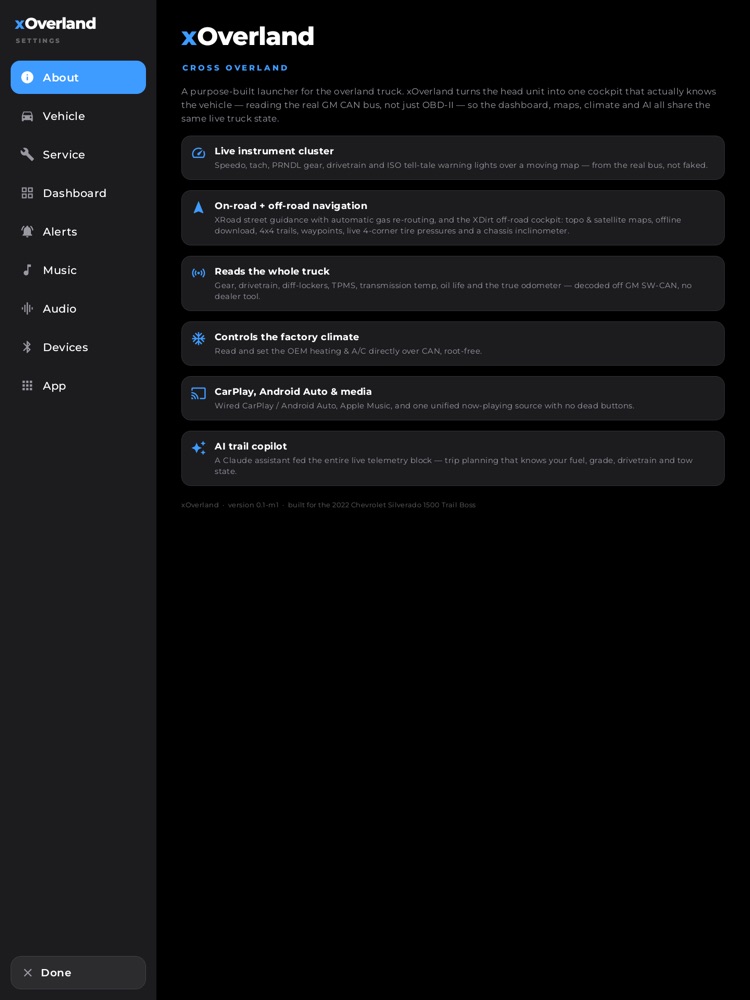
About
A read-only "what is this app" page — great for showing a friend what your truck can do.
- The big xOverland wordmark and the tagline "CROSS OVERLAND."
- A short paragraph explaining that xOverland reads your truck's real data, not just a generic diagnostics port.
- Six feature cards, each with an icon and a plain description: Live instrument cluster, On-road + off-road navigation, Reads the whole truck, Controls the factory climate, CarPlay, Android Auto & media, and Scout — AI co-driver.
- A footer line showing the app version and that it's built for the 2022 Chevrolet Silverado 1500 Trail Boss.
Vehicle
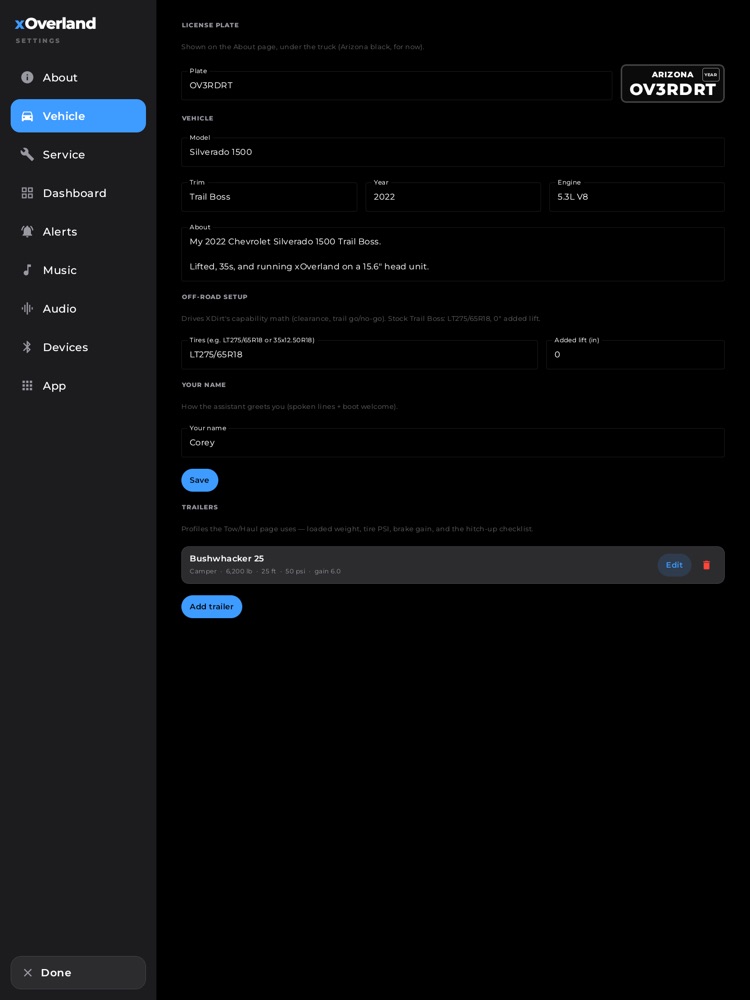
Everything about your specific truck. All of these feed the rest of the app — your name is how Scout greets you, your tire size and lift drive the off-road capability math, and your details show up on the About-the-truck page.
- License plate — a text box for your plate. As you type, a live plate graphic (Arizona black style, for now) previews next to it. This is what appears under the 3D truck on the About-the-truck page.
- Vehicle — text boxes for Model, and a row of Trim, Year, and Engine. Below that, an About box (a few lines) for your own free-text description of the truck.
- Off-road setup — Tires (enter your fitted tire size, e.g.
LT275/65R18or35x12.50R18) and Added lift (in) (inches of lift beyond the factory Trail Boss height;0means stock). A hint line reminds you of the stock Trail Boss numbers. - Your name — the name Scout uses when it greets you out loud and in the boot welcome.
- Save button — writes all of the above. It changes to a green Saved once stored; edit any field and it flips back to Save so you know there are unsaved changes.
- Trailers — a small garage of trailer profiles used by the Tow/Haul page. Each saved trailer shows its name and a summary line (type, loaded weight, length, height, tire PSI, brake gain). Each has an Edit button and a red trash icon to delete it. Add trailer opens the editor.
The trailer editor has: Name, a scrollable row of type chips (Utility, Camper, etc.), Loaded weight (lb), Length (ft), Height (ft), Tire PSI, and Brake gain, plus Save trailer and Cancel. Height matters — it feeds the low-clearance/low-bridge warning when you're routing with a tall rig.
Service
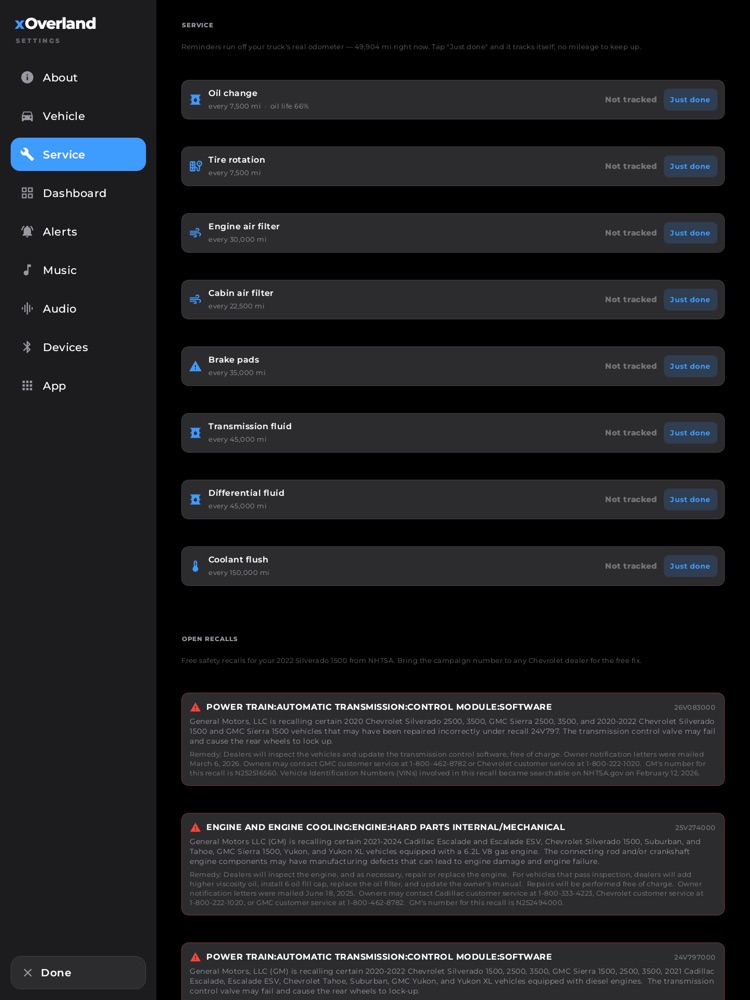
A maintenance ledger that keeps itself up to date from your truck's real odometer, so you never type in your mileage. It also checks for open safety recalls.
- A header line shows your current mileage (when the truck is connected) or a prompt to connect if it isn't.
- A row for each maintenance item — Oil, Tire rotation, Air filter, Cabin filter, Brakes, Transmission, Differential, Coolant — each with an icon, when it was last done, its interval, and a color-coded status ("In 3,200 mi," "Due soon," "Overdue," or "Not tracked"). Oil also shows the truck's oil-life percentage and flips to "Change now" if oil life drops below 15%.
- A Just done button on each row — tap it right after the service and xOverland stamps it with the current mileage and date, then starts counting down to the next one automatically.
- Open recalls — xOverland checks the free NHTSA database for your year and model and lists any open safety recalls, each with the component, campaign number, summary, and remedy. If there are none, you get a green "No open safety recalls" message.
For a deeper walkthrough of gauge customization, see the Dashboard section below (and the dedicated dashboard/gauges help page).
Dashboard
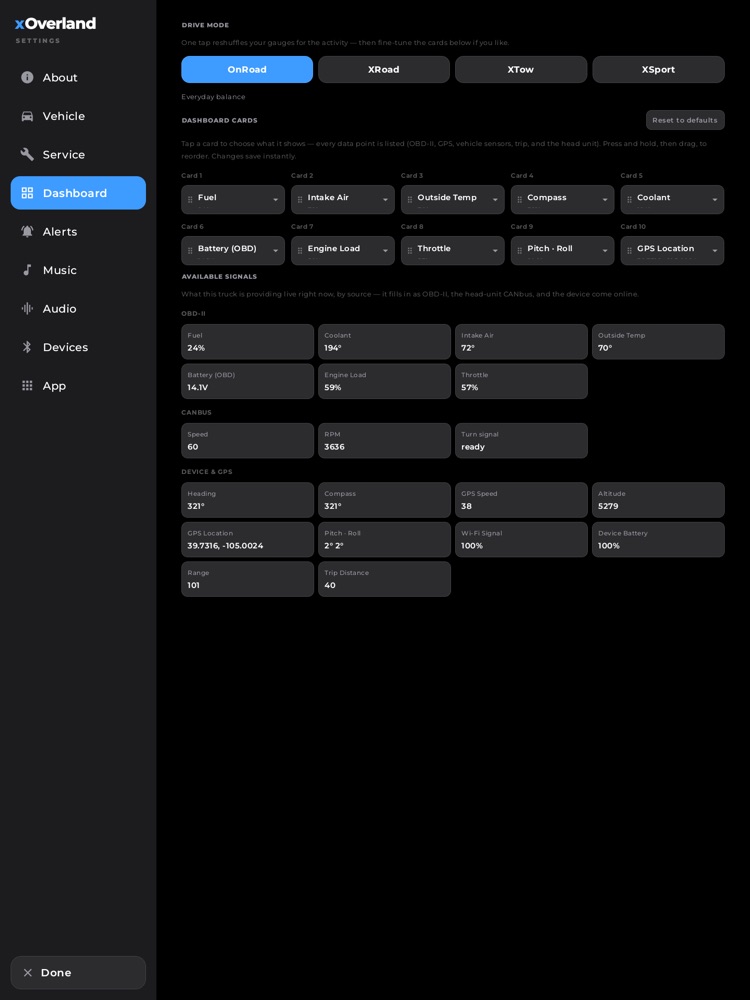
Controls your ten dashboard gauge cards and the one-tap drive-mode presets. (This is summarized here — the full gauge-customization guide has the details.)
- Drive mode — four big buttons: OnRoad, XRoad, XTow, XSport. Tap one and your ten gauges instantly rearrange for that activity (everyday balance, off-road tilt/altitude/heading, towing temps/load/range, or performance revs/load/throttle). A one-line description of the selected mode appears below.
- Dashboard cards — a 2×5 grid of your ten gauge cards. Tap any card to choose what it displays from a full categorized list of every available reading (engine data, GPS, vehicle sensors, trip stats, and head-unit data); press and hold, then drag, to reorder them. Changes save the instant you make them.
- Reset to defaults — a small button (top-right of the cards section) that only appears when you've changed things; it asks for a confirming second tap before restoring the default layout.
- Available signals — a reference footer showing exactly what your truck is providing live right now, grouped by source (OBD-II, CANbus, Device & GPS). It fills in as each source comes online, so you can see at a glance what's connected.
Alerts
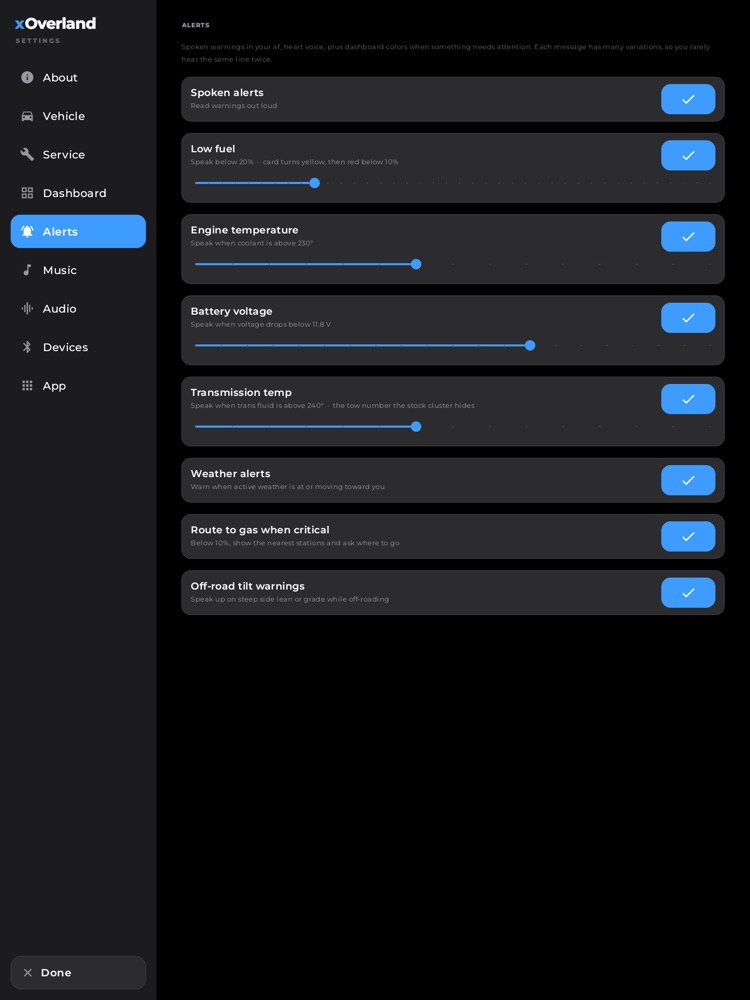
Which warnings xOverland speaks out loud (in the af_heart voice) and shows on the dashboard, plus the threshold for each.
- Intro line explaining that alerts are spoken in your voice and also change dashboard colors, with many phrasings so you rarely hear the same line twice.
- Spoken alerts — a master switch for reading warnings aloud.
- Low fuel — switch plus a slider to set the percentage it speaks at (the fuel card turns yellow, then red under 10%).
- Engine temperature — switch plus a slider for the coolant temperature (°F) that triggers a warning.
- Battery voltage — switch plus a slider for the low-voltage threshold (in volts).
- Transmission temp — switch plus a slider for the trans-fluid temperature — the towing number the stock cluster hides.
- Weather alerts — switch to warn when active weather is on or moving toward you.
- Route to gas when critical — switch; below 10% fuel it offers the nearest stations and asks where to go.
- Off-road tilt warnings — switch to speak up on steep side-lean or grade while off-roading.
Each threshold's slider only appears when that alert's switch is on.
Music
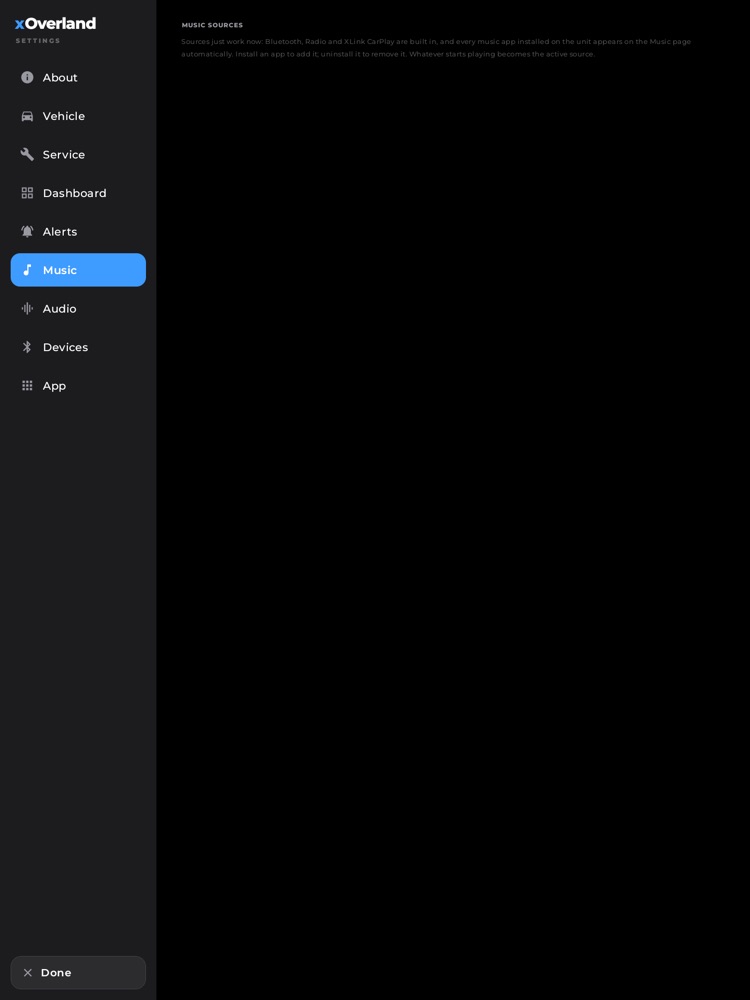
A short explainer, because music "just works" — there's nothing to configure here.
- Music sources — text explaining that Bluetooth, Radio, and XLink CarPlay are built in, and that every music app you install on the unit automatically appears on the Music page. Install an app to add it, uninstall it to remove it; whatever starts playing becomes the active source.
Audio
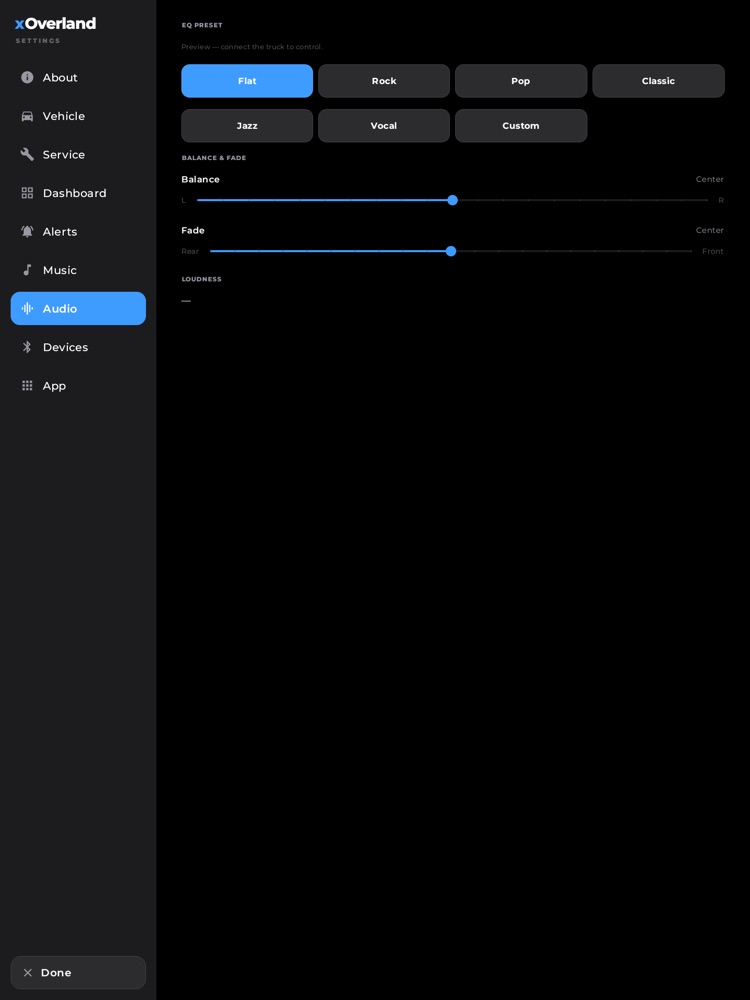
Tunes the truck's factory amplifier and speakers over the head unit's CAN connection.
- A status line at the top: "Live from the amp," "Preview — connect the truck to control," or "Read-only until connected," depending on whether the head unit is talking to xOverland.
- EQ preset — a grid of preset buttons (Flat, Rock, Pop, Classic, Jazz, Vocal, Custom). The selected one is highlighted.
- Balance & fade — two sliders: Balance (L↔R) and Fade (Rear↔Front), each showing "Center" or a numeric offset.
- Loudness — shows whether the amp's loudness feature is On or Off.
The EQ and balance/fade controls only do something when the head unit is connected; off the truck they're a preview.
Devices
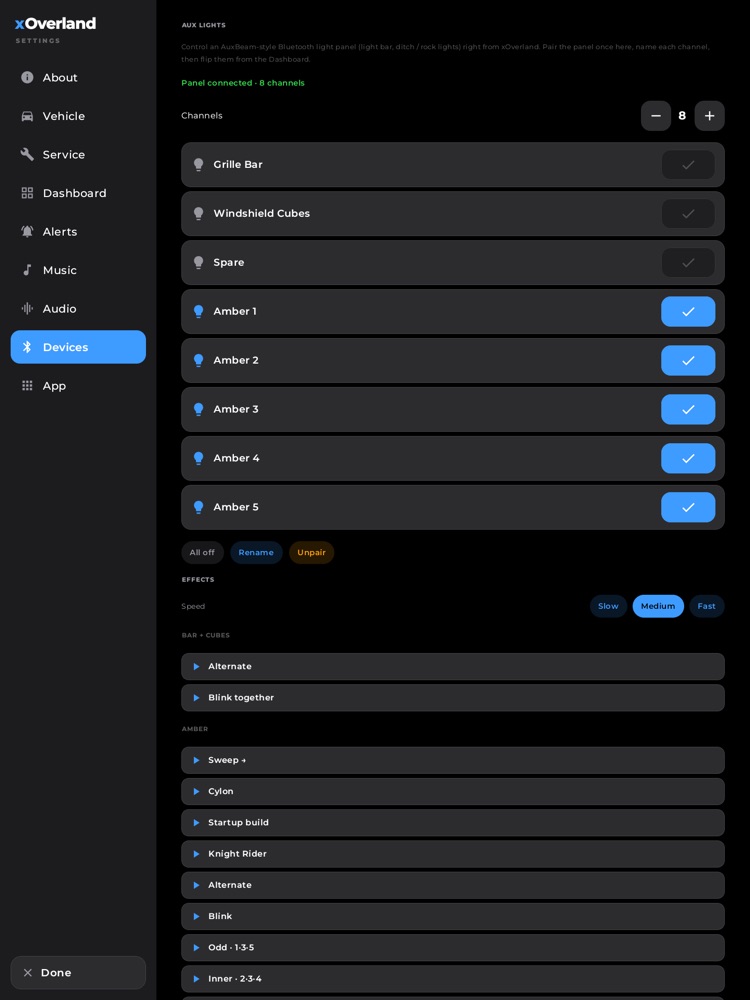
Pairs and controls an AuxBeam-style Bluetooth light panel — a light bar, ditch lights, or rock lights — so you can flip them from your dashboard.
- Intro text explaining you pair the panel once, name each channel, then control it from the Dashboard.
- Before pairing: a Find light panel button that scans over Bluetooth. Discovered panels appear as a list (name, address, signal strength or "PAIRED"); tap one to pair.
- After pairing: a status line ("Panel connected · N channels" or "connecting…"), a Channels stepper (2–12, in steps of two) to match your panel's outputs, and a switch row per channel to turn each light on or off.
- All off, Rename (reveals a text box per channel so you can name them "Light bar," "Ditch," "Rock," etc.), and Unpair buttons.
- Effects (when connected) — looping on/off light patterns with Slow / Medium / Fast speed buttons and a list of patterns grouped by area; tap one to run it, tap again or hit Stop to end it.
Note: pairing your OBD-II adapter and your XLink (CarPlay/Android Auto) dongle happens elsewhere, not on this tab — see What you need below.
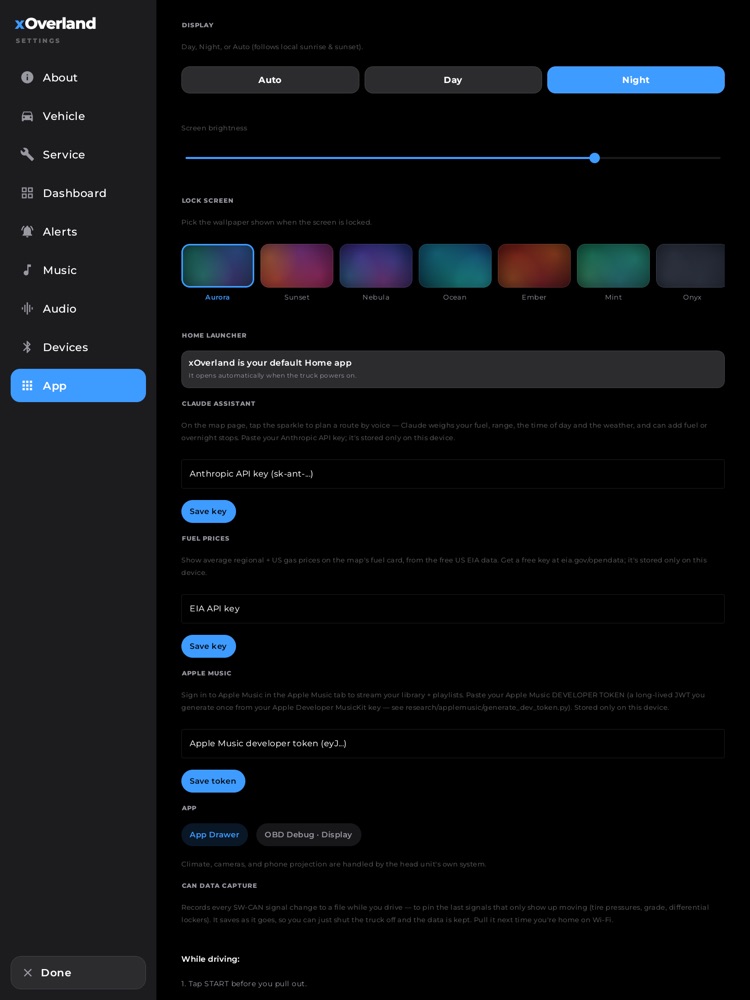
App
System-level preferences, accessory keys, and diagnostics tools.
- Display — Day / Night / Auto buttons (Auto follows local sunrise and sunset), plus a Screen brightness slider that drives the head unit's own backlight.
- Lock screen — a scrolling strip of code-generated wallpaper thumbnails; tap one to set the wallpaper shown when the screen is locked.
- Home launcher — a status card telling you whether xOverland is your default Home app. If it isn't, a Set as Home button opens the system picker so it launches automatically when the truck powers on.
- Scout — pick your provider (Groq, Gemini, or Claude) and paste that API key (Scout drives the route-planning sparkle on the map), with Save key and Clear. Stored only on this device.
- Fuel prices — a box for a free EIA API key (from eia.gov/opendata) to show average regional and US gas prices on the map's fuel card, with Save key and Clear.
- Apple Music — a box for your Apple Music developer token so the Apple Music tab can stream your library, with Save token and Clear.
- App — an App Drawer button (opens the app grid) and an OBD Debug · Display button (opens the diagnostics/display console). A note reminds you that climate, cameras, and phone projection are handled by the head unit's own system.
- CAN Data Capture — an advanced recorder with a step-by-step "while driving" checklist, a Start / Stop capture button, a Run DID probe button, and a live status line. It logs signal changes to a file you can pull off the truck later.
- Drive Logs — records a full drive (speed, rpm, temps, load, fuel, GPS) once per second with Start / Stop log, then lists saved drives you can tap to replay as a scrubbable graph, or delete.
How to set up your truck the first time
- Open Settings (header gear icon) and tap Vehicle.
- Fill in your License plate, Model / Trim / Year / Engine, and the About text.
- Under Off-road setup, enter your actual Tires size and any Added lift.
- Enter Your name so Scout greets you correctly.
- Tap Save — it turns green ("Saved") when everything is stored.
How to reshape your dashboard gauges
- In Settings, tap Dashboard.
- Tap a drive mode (OnRoad / XRoad / XTow / XSport) to snap all ten cards to a preset for that activity.
- Tap any individual card to pick exactly what it shows from the full list.
- Press and hold a card, then drag, to reorder. Everything saves instantly.
- To start over, tap Reset to defaults (appears only when you've made changes) and confirm with a second tap.
How to turn on a spoken alert and set its threshold
- In Settings, tap Alerts.
- Make sure Spoken alerts is on if you want warnings read aloud.
- Flip the switch for the alert you want (Low fuel, Engine temperature, Battery voltage, Transmission temp, etc.).
- A slider appears — drag it to the level you want the warning to trigger at.
How to pair a Bluetooth light panel
- In Settings, tap Devices.
- Tap Find light panel and grant Bluetooth permission if asked. (Close the panel's own AuxBeam app first — a panel allows only one connection.)
- Tap your panel in the list to pair it.
- Set the Channels count to match your panel, tap Rename to name each channel, then control the lights here or from the Dashboard.
How to add an API key
- In Settings, tap App.
- Find the section for the key you want (Scout, Fuel prices, or Apple Music).
- Paste the key or token into the box and tap Save. To remove it later, tap Clear.
What you need
Several tabs come alive only when the matching hardware or key is set up. xOverland is honest about this — it tells you on-screen when something isn't connected instead of showing fake data.
- Service, and the live parts of Dashboard/Alerts need your truck connected for real mileage, temperatures, fuel, voltage, and tire pressures. Live vehicle data comes from either a supported OBD-II adapter or the head unit's CAN connection. An OBD-II adapter is paired at the truck's own Bluetooth settings (the app will prompt "Pair an OBD-II adapter in Bluetooth settings" if it doesn't see one); it is not paired on the Settings › Devices tab.
- Audio needs the head unit's CAN connection to actually change the amp; otherwise it's a labeled preview.
- Devices needs a Bluetooth light panel and the unit's Bluetooth adapter. If there's no adapter, the tab says so.
- Scout needs an API key from Groq, Gemini, or Claude (App tab). Fuel prices needs a free EIA key. Apple Music needs your Apple Music developer token. All three are stored only on your device.
- The XLink / CarPlay / Android Auto dongle is set up on its own XLink screen (reached from the media/XLink surface), not from this Settings page.
Tips & good to know
- Nothing is lost between drives. Your vehicle info, dashboard layout, alert thresholds, keys, and light-panel setup are saved on the head unit and restored every time the truck powers on.
- Save buttons tell you the truth. On the Vehicle and App key sections, the button reads "Save," turns green to "Saved" after you tap it, and flips back the moment you edit again — so you always know if you have unsaved changes.
- Auto day/night can follow your headlights. With Display set to Auto, the interface switches to its night look when the truck's headlights/illumination come on, then falls back to sunrise/sunset and finally the local clock.
- Reset asks twice. Resetting the dashboard cards requires a confirming second tap, so a stray touch won't wipe your layout.
- Honest "not connected" states everywhere. Audio shows "preview," Service asks you to connect for real mileage, and Devices tells you if there's no Bluetooth — you'll never be fooled into thinking a control is live when it isn't.
- CAN Data Capture and Drive Logs are advanced. They save to files on the head unit that you copy off later; most owners never need them, but they're there for deep diagnostics and record-keeping.