Part 3 · Media & Phone
Music
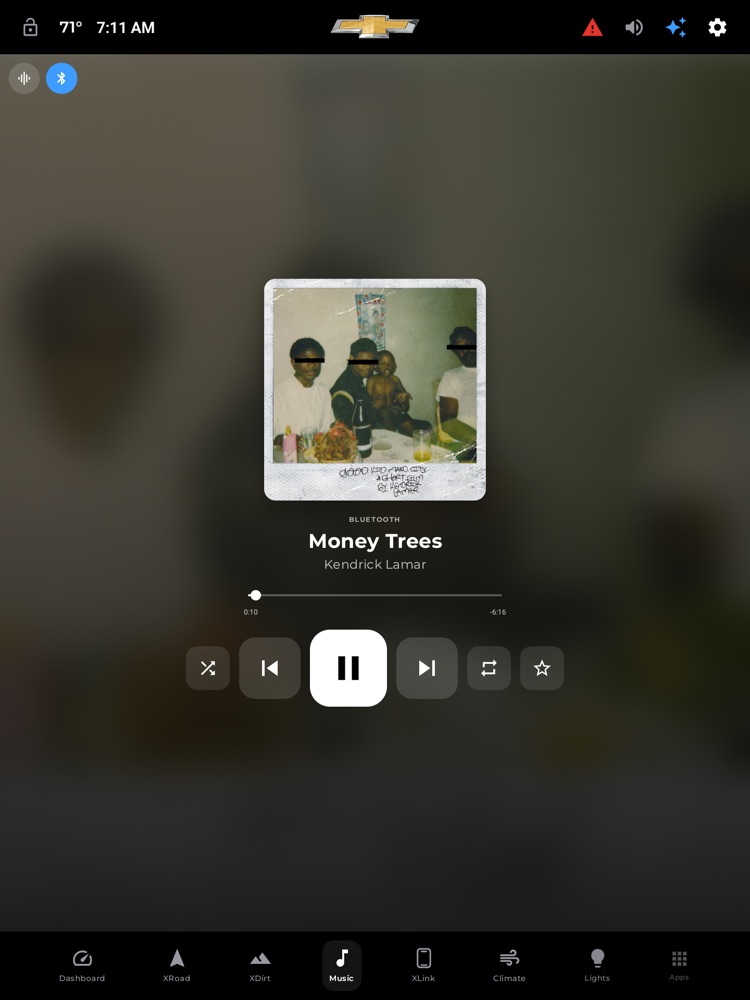
The Music page — now-playing, source, scrubber, and the capability-aware transport.
xOverland gives you one gorgeous, glanceable place for whatever's playing — your phone over Bluetooth, a streaming app like Spotify or Apple Music, CarPlay, or the truck's own radio. The whole screen fills with the album art, the controls are big enough to hit without looking, and it always shows the one thing that's actually playing right now, so nothing on screen ever disagrees with what's coming out of your speakers.
Where to find it: Bottom dock › Music tab. There's also a mini-player on the left side of the dock that follows you around the app, and it expands into a full-screen player without leaving the page you're on.
When you'll use it: Any time you want to see what's playing, change tracks, scrub through a song, switch between your music apps and the radio, or just let the album art fill the dash. The big controls and auto-hiding pop-up are built for glancing while you drive.
The screen, part by part
The Music page fills the whole display with the current album art — softly blurred and darkened behind the controls so everything stays readable, in the style of a high-end phone's now-playing screen. When the radio is your source, the background becomes a warm amber gradient instead.
Top-left buttons
- Visualizer button — a round button with an equalizer-bars icon. Tap it to launch the full-screen music visualizer (more on that below).
- Source button — a round, colored button right next to it showing the icon of whatever's currently playing (the Spotify green, the Bluetooth blue, and so on). Tap it to open the source picker. If nothing's playing yet, it shows a generic music note.
Now Playing (the main area)
- Album art — a large rounded cover in the center. It gently grows when playback is running and eases back a touch when paused, so you can tell at a glance whether music is going. If the app doesn't provide artwork, you get a tasteful color gradient with a music-note icon.
- Source label — a small all-caps line above the title (e.g. "SPOTIFY", "BLUETOOTH", "RADIO") telling you where the sound is coming from. If the audio is something only the truck's own head unit can see — like a USB stick or a CD the factory system is playing — this reads "HEAD UNIT."
- Title and artist — the song name in large bold type with the artist below it. Long titles scroll smoothly across on a single line so they're never cut off.
- Scrubber (progress bar) — a slider showing how far into the track you are, with the elapsed time on the left and the time remaining on the right. Drag it to jump to any point in the song. It appears only when the current source actually reports a track length — live radio and CarPlay don't, so there's no dead bar sitting there.
- Transport controls — a row of big, rounded-square buttons. The large white play/pause button sits in the middle, with previous and next to either side. Depending on what your current app supports, you may also see shuffle, repeat, and a favorite/star button. These only appear when the playing app actually offers them — xOverland never shows a button that would do nothing (the "no dead buttons" rule). Shuffle, repeat, and favorite light up brighter when they're switched on, and repeat shows a little "1" when it's set to repeat a single track.
Up Next (the right column)
- When you're playing from a streaming app that publishes its queue, the right side of the page shows an Up Next list of the songs coming up. Each row has a small cover, the title and artist, and a play arrow — tap any row to jump straight to that track.
- If there's no queue to show (over Bluetooth, CarPlay, or the radio), the Up Next column disappears entirely and the now-playing view stretches to fill the whole width — no empty panel. Bluetooth in particular shows a friendly note that a queue isn't available and suggests using a streaming source for Up Next.
The source picker (tap the source button to open it)
Tapping the colored source button expands it into a panel over the page, and the rest of the screen dims so a tap anywhere outside closes it. Inside you'll find:
- The current source at the top, with its name and an open-in-app button (a little "open" arrow) so you can jump into the streaming app itself to search or browse playlists. Tap the current source's row to collapse the panel.
- A list of sources to pick from. Three are always at the top:
- Bluetooth — your paired phone.
- Radio — the truck's built-in FM/AM tuner. Picking this turns the Music page into the radio tuner.
- XLink · CarPlay — CarPlay or Android Auto running through a connected Carlinkit adapter.
- Below those, every music app installed on the head unit appears automatically — Apple Music, Spotify, YouTube Music, Amazon Music, Pandora, SoundCloud, and any other player. Each shows its name and a one-word tag. The one that's currently selected has a checkmark. Tapping an app both selects it as your source and opens it so you can start something playing.
How to play, pause, and skip
- Open the Music tab from the dock.
- Tap the large center button to play or pause.
- Tap the side buttons to go to the previous or next track.
- To jump to a spot in the song, drag the scrubber and let go.
How to switch what's playing (change source)
- On the Music page, tap the colored source button in the top-left.
- Pick from Bluetooth, Radio, XLink · CarPlay, or any installed music app in the list.
- If you picked an app, it opens so you can start a song; picking Radio switches the page into the tuner.
You usually don't even need to do this — xOverland switches automatically. Start a song in Spotify and the source flips to Spotify; a CarPlay stream flips it to XLink; stop the stream and it falls back to whatever else is playing. The source you see is always whatever's actually making sound.
How to open a music app to browse or search
- Tap the source button to open the picker.
- At the top, on the current source's row, tap the open-in-app arrow on the right.
- The streaming app opens full-screen, where you can search and pick playlists. (Bluetooth and Radio have no app to open, so that button only appears for app sources.)
How to use the mini-player (from anywhere in the app)
- A small player lives on the left of the dock and shows the current cover, title, and artist wherever you are in xOverland.
- Tap the album art or the title to expand it into a large floating player over the current page — with the cover, scrubber, and full transport controls.
- The one control on the mini-player itself is a Next button, for skipping a track without opening anything.
- The expanded player auto-closes after about 10 seconds of no interaction, so it never lingers over your map or gauges. Touching a control or a track change keeps it open; steady playback doesn't count. Tap the album art, the X, or anywhere outside to close it immediately.
How to change the volume
- In the header (top of the screen), tap the speaker/volume icon.
- A tall + / − / mute pad drops down just below the button.
- Tap + or − to step the volume up or down one notch per press, or the mute button to silence.
- The pad auto-dismisses a few seconds after your last tap.
How to open the full-screen visualizer
- On the Music page, tap the equalizer-bars button in the top-left.
- The screen fills with an animated visualization themed to your album art's colors.
- Swipe left or right to switch between the five styles (retro bars, radial spectrum, oscilloscope, particle field, and aurora wave), or tap the style chips along the bottom.
- Tap the screen to show or hide the on-screen controls (they also auto-hide after a few seconds).
- Tap the X in the top-left, or press Back, to close it.
What you need
- To see what's playing from your phone or a music app: the first time you open Music, you'll see a "Show what's playing" banner. Tap Open and grant xOverland notification access in the system screen that appears. This is the permission Android requires to read the active music session — until it's granted, the page stays empty rather than showing fake data. (The radio tuner doesn't need it.)
- For the radio to actually play and tune: the head unit must be connected to the truck's factory system, which xOverland talks to directly. Choosing Radio switches the OEM system to the tuner and the previous/next buttons seek stations.
- For CarPlay / Android Auto (XLink): a supported Carlinkit adapter connected and running. When a CarPlay or Android Auto stream is active, the source auto-switches to XLink and you get play/pause and skip; there's no scrubber or shuffle because CarPlay doesn't expose those over the adapter.
- For the audio-reactive visualizer: microphone (audio) permission, and on this head unit a one-time screen-capture consent so xOverland can read the live audio mix. If audio can't be captured, the visualizer still runs on a graceful synthetic animation rather than going dark — and it's honest about which, showing a green LIVE badge when it's reacting to real sound and a prompt to enable/retry when it isn't.
- For volume control: the head unit connected to the truck. On this unit the amp volume is a hardware path with no on-screen readout, so it's a relative stepper (one notch per tap) exactly like the factory volume buttons. If the head unit isn't connected yet, the volume buttons appear dimmed.
Tips & good to know
- One source, always honest. xOverland deliberately shows only the single source that's actually playing. Everything — the Music page, the dock mini-player, and the CarPlay widget — reads the same now-playing info, so they can never contradict each other.
- No dead buttons. If you don't see shuffle, repeat, a favorite star, or a scrubber, it's because the current app or source doesn't support it — not a bug. Switch to a full streaming app and those controls appear.
- Favorite = the app's own like. The star sends the current app's rating (a heart, a thumbs-up, or a star, whatever that app uses), and lights up when the track is already liked.
- Smooth progress bar. Some sources only report their position every few seconds; xOverland fills in the gaps so the time and scrubber advance smoothly instead of jumping.
- The mini-player is smart about clutter. It tucks away when it would just be duplicating the Music page you're already looking at, and slides back in once things settle.
- Head-unit fallback. If the truck's factory system is playing something Android can't see — a USB drive, a disc — the page still shows that track under a "HEAD UNIT" label so you're never left staring at "Nothing playing."
- Install an app, and it just shows up. There are no toggles or setup for music apps: install one and it appears in the source list; uninstall it and it's gone.