Part 2 · Driving & Navigation
Dashboard — the instrument cluster
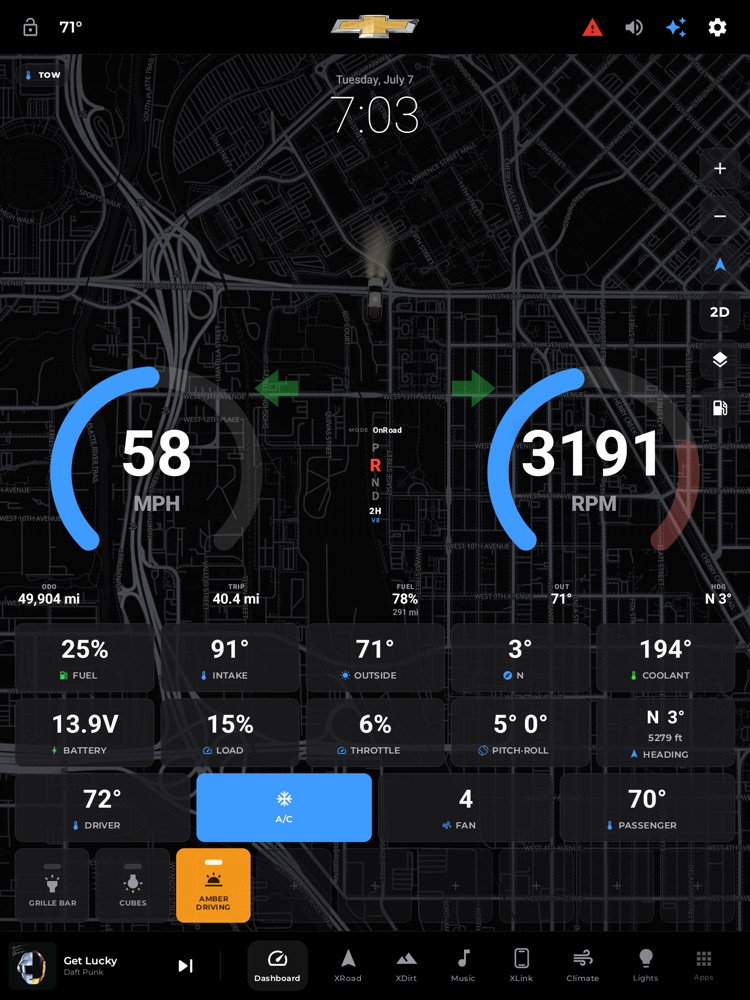
The Dashboard instrument cluster over the live map, with metric cards and the aux-light row below.
Your home screen and digital gauge cluster in one. The Dashboard floats a full glass instrument cluster over a live map of where you are — a big speedometer and tachometer, your gear and drivetrain in the middle, a strip of warning lights up top, and a row of readouts along the bottom. Below that sit customizable metric cards you choose, plus quick climate and light controls. It's designed to be read at a glance while you drive.
Where to find it: It's the default home screen — the first surface you see when the truck wakes up. From anywhere else, tap the Dashboard icon in the bottom dock to come back.
When you'll use it: All the time. It's your speedo, tach, gear indicator, warning-light cluster, trip computer and quick-controls panel — everything you'd glance at while driving, on one screen.
The screen, part by part
From top to bottom, here's everything you'll see.
The clock (top center). A large time-and-date readout floats near the top, over the map, the same style as your lock screen.
The warning-light strip (telltale band). Just above the gauges runs a band of warning lights — the same kind of symbols as a factory dash, following standard automotive colors. It's intentionally empty when everything's fine — there are no gray "ghost" icons sitting there, so the moment a light appears you know it means something. Lights are grouped into three zones, exactly like a real cluster:
- Left: a blue high-beam symbol when your brights are on.
- Center (most important): red "stop now" warnings appear first, then amber "service soon" warnings. These include low oil pressure (OIL), engine overheating (TEMP), low brake fluid (BRAKE), the parking-brake symbol, a door or hood ajar (DOOR), forward-collision alert (FCW), a charging/voltage problem, low tire pressure, low fuel, brake-pad wear (PAD), oil-change-due (SVC), reduced engine power (PWR), reduced power steering (PS), vehicle overload (LOAD) and a loose fuel cap (CAP). If several ever light at once, they wrap onto a second line rather than hiding any.
- Right: green "system is on" indicators — a trailer-connected symbol, a differential-locker indicator (LOCK), hill-descent control (HDC) and auto-hold (AUTO).
Turn-signal arrows. The classic green left/right arrows sit at the top inner corners of the two big gauges, flanking the gear in the middle. They blink green in time with your signal, just like a factory cluster. (See What you need — these only appear if your truck reports the signal.)
The speedometer (big gauge, left). A large 270° ring showing your speed in MPH. The number stays white at normal speeds, turns amber above 80, and red above 100.
The tachometer (big gauge, right). A matching ring showing engine RPM, with a redline zone marked toward the top. The number turns red when you're into the redline.
The center driver-info column. Between the two gauges:
- The MODE pill at the top shows your current drive mode — OnRoad, XRoad, XTow or XSport. Tap it to cycle to the next one (more below).
- The gear column (PRNDL) beneath it lists P R N D stacked vertically. Your current gear is enlarged and highlighted — accent-colored normally, red when you're in Reverse.
- The drivetrain badge shows 2H, 4H or 4L when you shift the transfer case; 4L stands out in green.
- The cylinder-mode chip shows whether the engine is running on all cylinders (V8) or in fuel-saving mode (DFM, GM's Dynamic Fuel Management).
The footer ribbon. A quiet full-width strip under the gauges with five always-on readouts: ODO (odometer), TRIP (trip miles), FUEL (fuel %, with your estimated range shown just beneath it), OUT (outside temperature) and HDG (heading, e.g. "NW 315°").
The metric cards (two rows of five). Ten big glass cards you can customize. Each shows one live reading with an icon and label — things like coolant temp, battery voltage, engine load, altitude, compass, average MPG, tire pressures and many more. A few cards are interactive: the GPS/Location card shows your heading and altitude while moving and switches to precise coordinates when you stop; the Pitch · Roll card opens a live 3D tilt view when tapped; the Tires card lays out all four corners in the truck's layout.
The climate quick row. Below the cards: DRIVER temp, an A/C on/off button, FAN speed, and PASSENGER temp. Tap a temperature or the fan to open a quick adjuster; A/C toggles on and off in place.
The aux-lights row. If you've paired an off-road light controller, a row of rugged rocker switches appears here — one per light group (grille bar, cube lights, amber driving lights) plus any lighting effects you've pinned. Tap to toggle. If no light controller is paired, this row simply doesn't appear.
How to switch drive modes
Each drive mode re-arranges your ten metric cards into a set tuned for that kind of driving.
- Find the MODE pill in the center of the cluster, between the two big gauges.
- Tap it. It advances to the next mode and instantly re-lays your cards.
- Keep tapping to cycle through all four: OnRoad (everyday balance) → XRoad (off-road: tilt, altitude, heading) → XTow (hauling: temps, load, range) → XSport (performance: revs, load, throttle) → back to OnRoad.
You can also pick a mode, and fine-tune exactly which cards each shows, from Settings › Dashboard.
How to customize the metric cards
- Open Settings › Dashboard.
- Choose the reading you want in each of the ten card slots. The list only offers metrics that are actually producing a value right now, so you won't pick a card that shows a blank.
- There's a one-tap Reset to defaults if you ever want the factory layout back.
Your card layout is remembered, and it wins over the drive-mode presets on restart — so a mode you switched to won't quietly overwrite a manual tweak the next time the truck starts up.
How to check tow fluids
When you're towing, the Dashboard surfaces the fluid temps the factory cluster keeps hidden.
- When a trailer is connected (or transmission-fluid data is available), a TOW pill appears at the top-left of the cluster.
- Tap it to open the Tow / Haul panel. It shows transmission-fluid temperature front and center (with a "keep under 220°F" guide), plus engine-oil temp, oil pressure and coolant — each colored green/amber/red by its safe range.
- The same panel shows trailer status, drivetrain, cylinder mode, and — if you've saved trailer profiles in Settings › Vehicle — that trailer's weight, length, tire PSI, brake gain, and a tap-through pre-departure walk-around checklist.
How to see live pitch and roll
- Add or find the Pitch · Roll card among your metric cards.
- Tap it to open the live attitude view: two 3D trucks, one showing nose-up/nose-down pitch, one showing side-to-side lean, each ringed by a gauge and labeled (LEVEL / NOSE UP / LEAN LEFT, etc.).
- Tap Calibrate level to zero it out when you're parked on flat ground.
What you need
The Dashboard always works — but how much live truck data it shows depends on what's connected:
- Full live gauges (speed, RPM, gear, drivetrain, fluid temps, tire pressures, warning lights): these come from your truck's data connection. With a supported OBD-II adapter paired (in the head unit's Bluetooth settings) and, on a properly wired install, the head-unit's vehicle-data link, the cluster reads live. This is when you get the real speedometer, tachometer, PRNDL gear, 2H/4H/4L, cylinder mode, and the warning-light strip.
- GPS-only fallback: if no adapter is connected, the Dashboard offers a "Use GPS Only" button. Tap it and the cluster switches to a clean speed-and-compass layout driven purely by the head unit's own GPS and sensors — you still get speed, heading and pitch/roll with nothing plugged in. A small GPS badge shows you're in this mode; tap it to retry the vehicle connection.
- While connecting: you'll briefly see a "Connecting to OBD-II…" card, with the option to drop straight to GPS-only if you don't want to wait.
- Turn-signal arrows only appear if your particular truck actually reports the signal over its data bus — some don't wire it, and rather than show a fake indicator, the arrows simply stay hidden.
- Aux-light switches require a paired off-road light controller; temperature and fan controls require the head unit's climate connection.
- Outside temperature and estimated range are enriched by the built-in weather and trip-economy features and improve as the app learns your driving.
Any card whose data source isn't available simply won't be offered in Settings, so your Dashboard never shows dead or blank readouts.
Tips & good to know
- Empty means good. The warning strip only lights up when something's actually active, so a blank strip is a healthy truck — and a lit lamp is always worth a look.
- Colors carry meaning. Cards and readouts warm from white to amber to red as a value moves out of its safe range (fuel getting low, coolant getting hot, oil pressure dropping, range running out). Green means healthy.
- Smart low-oil-pressure logic. The oil-pressure warning won't false-alarm when you're parked with the engine off (where the sensor naturally reads near zero) — it only trusts a low-pressure reading with the engine running, while always honoring the truck's own warning lamp.
- Day and night. The whole cluster follows the app's day/night theme, staying legible over the map in bright sun or after dark, with a subtle scrim behind the digits.
- There's a live map behind everything. It's decoration by default (flat and calm), but you can nudge it with the small map controls on the right — zoom, orientation, 3D, satellite view, and a gas-station overlay. If you start a route from the street-navigation tab, the Dashboard shows turn-by-turn guidance right here in a banner, so you can navigate without leaving your gauges.
- Your layout sticks. Card choices and your last drive mode are saved across restarts.